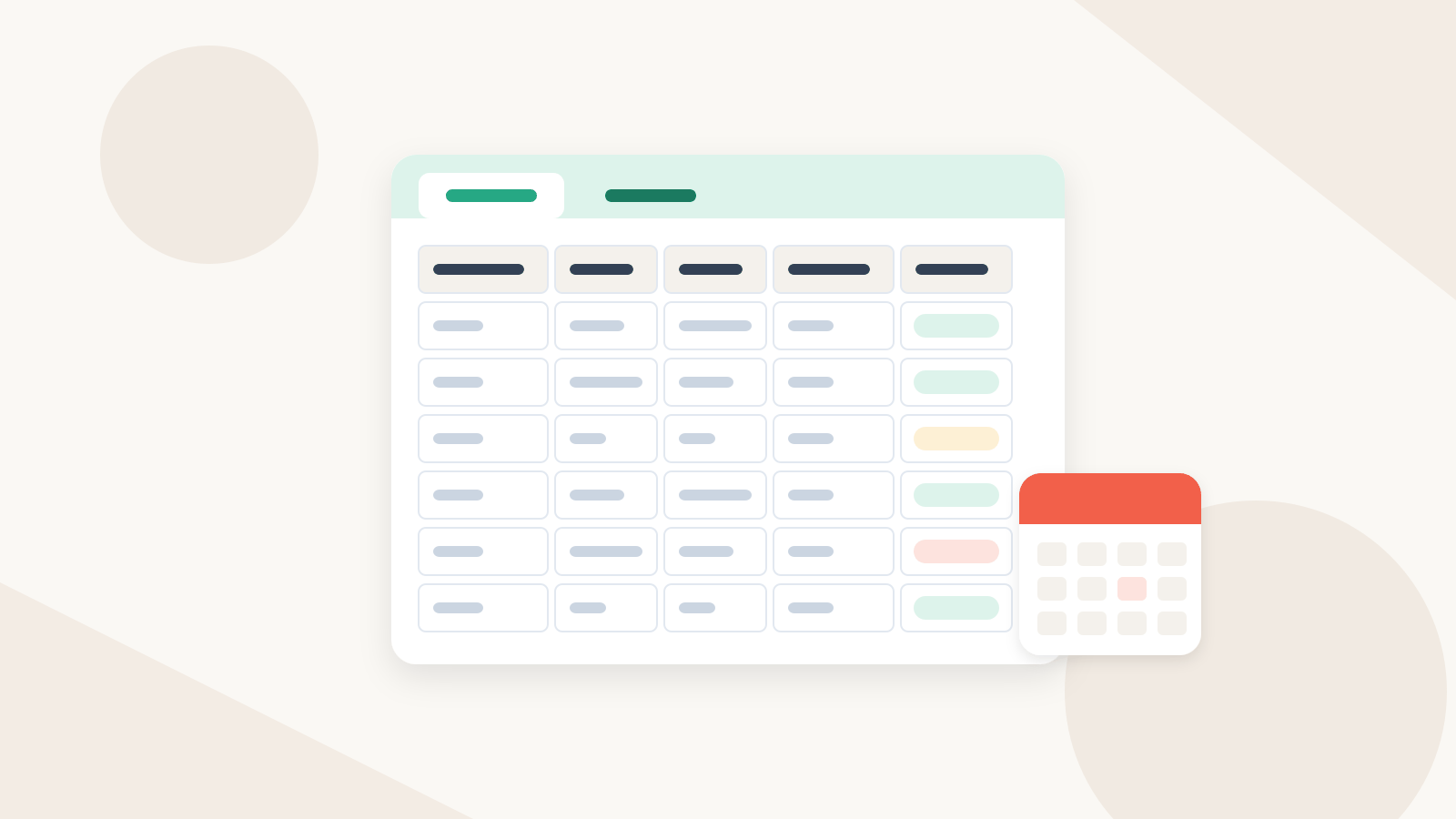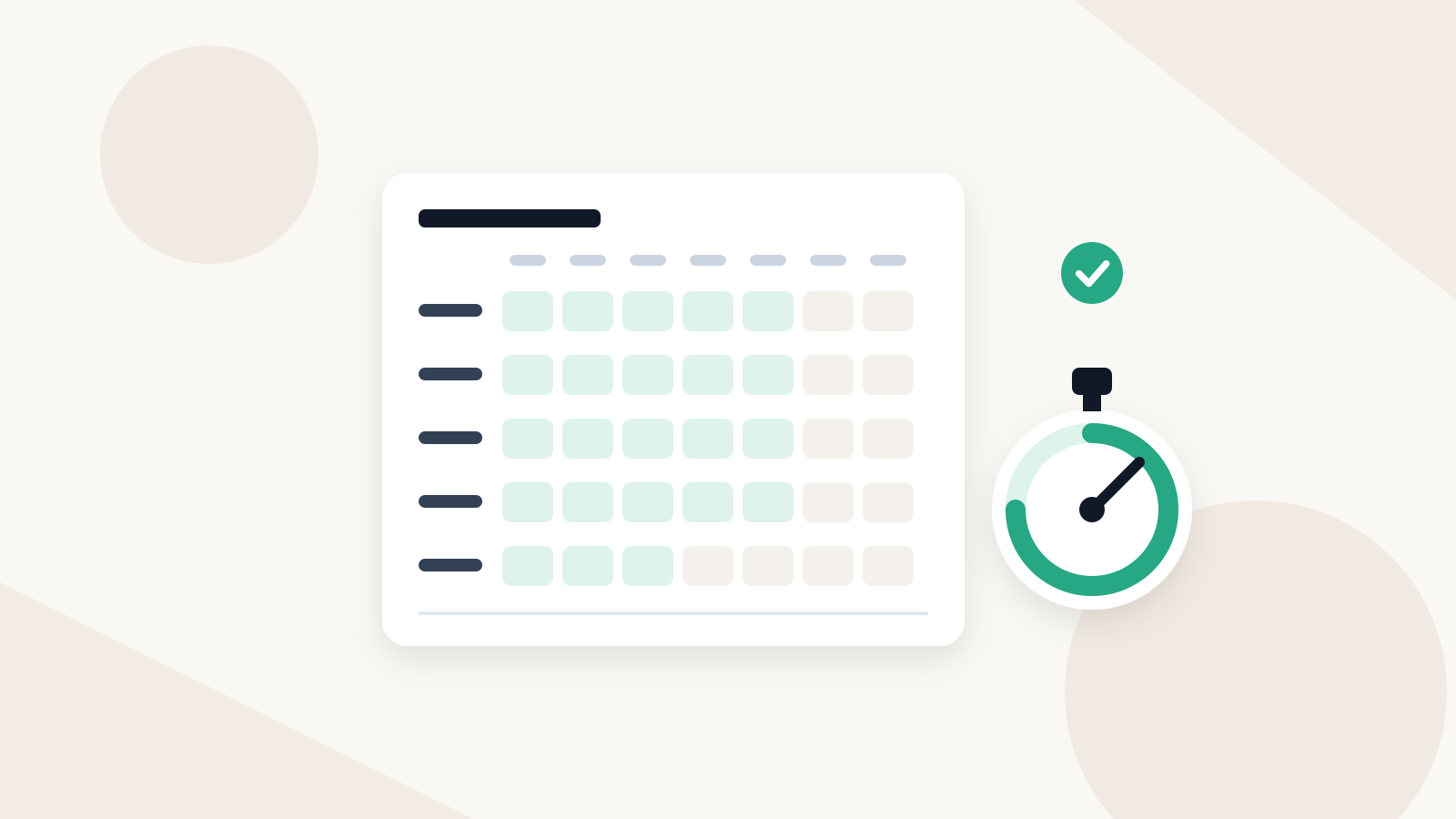
A weekly timesheet records, for each day worked, the start time, end time and unpaid break, the hours that result and the project or client they belong to, then totals the week, applies the rate and records who approved it. The free template below does all of that with formulas, adds a two-week tab, and opens in Excel and Google Sheets.
Download: weekly timesheet template (.xlsx)
It is built for hourly contractors and the teams that pay them, and it works for any hourly worker whose hours need a clear record. If you pay several contractors each month and need a pay-run sheet on top of the timesheets, use our contractor payment schedule template as the next step.
What a timesheet must capture
A timesheet is only useful if someone else can check it later and reach the same total. These fields make that possible:
| Field | Why it matters |
|---|---|
| Worker name and client | Ties the sheet to one person and one contract |
| Week start and end dates | Fixes which period the hours belong to |
| Date and day for each entry | Lets the approver match work to deadlines and calendars |
| Start time and end time | Shows how the hours were reached, not just the total |
| Unpaid break (minutes) | Keeps lunch and gaps out of paid time |
| Hours per day | The number that is paid, calculated, never typed |
| Project or client | Splits the week for client billing and budget checks |
| Notes | Explains anything unusual (late night, extra meeting) |
| Weekly total, rate, amount owed | Turns hours into the amount on the pay run |
| Submitted by, approved by, dates | Proves the hours were checked before payment |
For non-exempt employees, the U.S. Department of Labor expects employers to record hours worked each day and the total for each workweek, and it does not require any particular timekeeping method as long as the records are complete and accurate (DOL Fact Sheet 21). Independent contractors are outside those employee rules, so for them the timesheet is whatever the contract asks for. The same fields still make an hourly invoice easy to check.
What is in the template
The file has three tabs. Each starts with a short "How to use" block. Yellow cells with blue text are where you type; black text is a formula.
- Weekly. Seven day rows, Monday to Sunday, with columns for Day, Date, Start, End, Break (min), Hours, Project / client and Notes. Five extra lines below cover a second project or a split shift on any day. Below that: Total hours, Hourly rate, Amount owed and a check that flags extra lines dated outside the week.
- Biweekly. The same layout over 14 days, with six extra lines, plus separate Week 1 and Week 2 totals before the period total. Weekly subtotals matter when a cap, a budget or overtime is counted per week.
- Example week. A completed fictional week (described in the worked example below) so you can see the expected format. Leave it as a reference or delete it.
The formulas do the arithmetic you should never do by hand:
- Date and Day fill in from the start date you enter, so the rows always match the calendar. If your week starts on Sunday, the day labels follow.
- Hours is
=MOD(End-Start,1)*24 - Break/60. Spreadsheets store times as fractions of a day, so multiplying by 24 turns the difference into decimal hours. MOD wraps a shift that ends after midnight, so 10:00 PM to 1:30 AM reads 3.50 hours instead of a negative number. - Rounding is off by default. If your contract sets a rule, pick 1, 5, 6 or 15 minutes in the rounding cell and every day's hours round to that step.
- Amount owed is Total hours times the rate, rounded to cents, shown in the currency you enter.
- Hours by project / client totals the week for each project name you list, and a "Not matched" line catches a misspelled project.
- Status reads Draft, then "Submitted, awaiting approval", then Approved, from the dates in the approval block.
How to fill in the timesheet
- Enter your name, the client, the first day of the week, your hourly rate and the currency at the top.
- For each day worked, type the start and end time (9:00 AM or 17:30 both work). The sheet rejects entries that are not times, such as a plain 9.
- Enter unpaid break minutes for the day. A 30-minute lunch is 30.
- Name the project or client on every row, spelled the same way each time.
- If you split a day between two projects, end the first project's time on the day row and put the second block on an extra line with its date.
- Check Total hours and Amount owed, then fill in Submitted by and Submitted date and send the file to whoever approves it.
How to approve a timesheet
Approving is a short check, not a performance review. Do it before the hours reach a pay run:
- Check the period. Dates match the week you are paying, and the extra-line check reads OK.
- Read the daily pattern. Start and end times should look like the work you saw. A 14-hour day or a weekend block deserves a question, not an automatic no.
- Compare against the project. Hours by project should fit the scope, estimate or client budget. This is where over- and under-billing shows up.
- Ask before you edit. If something is wrong, send it back with a note and let the worker correct it, so the sheet stays their record.
- Sign it off. Fill in Approved by and Approved date. Status changes to Approved.
- Keep a copy. Save the approved version (PDF or a locked copy) before anyone pays from it.
Our guide to reviewing contractor hours before payment covers the review by client and project in more depth, including signals of over- and under-billed hours.
Common mistakes: rounding, overnight shifts and breaks
| Mistake | What goes wrong | How the template handles it |
|---|---|---|
| Rounding every day up | Rounding up to the next quarter hour each day can add up to 70 minutes of pay in a five-day week | No rounding by default; any rounding step is one cell, applied the same way to every day |
| Reading 7:45 as 7.45 hours | 7 hours 45 minutes is 7.75 hours, so pay comes out short | Hours are shown as decimals, calculated from times |
| Shift past midnight | End minus start goes negative, or the shift lands on the wrong day | MOD wraps the shift; it is dated on the day it started |
| Break left in paid time | A one-hour lunch is paid every day | Break minutes are subtracted on each row |
| Two projects in one row | Hours cannot be split for client billing | Extra lines for a second project on the same day |
| Totals typed by hand | A typo survives approval | Every total is a formula |
| Changed after approval | The paid number differs from the approved one | Save an approved copy before paying |
Rounding deserves care. For non-exempt employees, federal rules (29 CFR 785.48) accept rounding start and stop times to the nearest 5 minutes, tenth or quarter of an hour, provided that over time it does not leave workers unpaid for time actually worked. For contractors, write the rule into the contract. Many hourly contractors bill in 6-minute (tenth of an hour) steps; whatever you choose, apply it the same way in both directions.
Worked example: a fictional designer's week
The Example week tab is a fictional sample. Priya Nair, a freelance designer, works for Harbor & Pine Studio, an invented agency, at an illustrative $40 an hour. Names, projects and rates are made up to show the format.
| Day | Start | End | Break (min) | Hours | Project / client |
|---|---|---|---|---|---|
| Mon Nov 9 | 9:00 AM | 5:30 PM | 30 | 8.00 | Brightline website |
| Tue Nov 10 | 9:00 AM | 1:00 PM | 0 | 4.00 | Brightline website |
| Tue Nov 10 (extra line) | 2:00 PM | 6:15 PM | 15 | 4.00 | Oakfield app |
| Wed Nov 11 | 10:00 PM | 1:30 AM | 0 | 3.50 | Oakfield app |
| Thu Nov 12 | 8:45 AM | 4:45 PM | 45 | 7.25 | Brightline website |
| Fri Nov 13 | 9:00 AM | 12:30 PM | 0 | 3.50 | Oakfield app |
| Week total | 30.25 |
What the formulas produce:
- Total hours: 30.25. Amount owed: 30.25 x $40 = $1,210.00 USD.
- By project: Brightline website 19.25 hours, Oakfield app 11.00 hours, nothing unmatched.
- Wednesday ran past midnight for launch support. MOD turns 10:00 PM to 1:30 AM into 3.50 hours, and the entry stays dated Wednesday, the day it started.
- Tuesday was split between two projects, so the afternoon sits on an extra line with Tuesday's date.
- Approval: Priya submitted on Friday, November 13; Sam Ortiz approved on Monday, November 16. Status reads Approved.
The studio owner then pays Priya $1,210.00 from whatever account they normally use and keeps the approved sheet with the payment record.
Weekly or biweekly?
Use the Weekly tab if you approve hours every week or pay weekly. Use the Biweekly tab if you pay every two weeks: it covers 14 days from the start date and still shows each week's subtotal. If you pay twice a month (the 1st to the 15th, then the 16th to month end), the period length varies, so use two Weekly sheets or extra lines rather than forcing it into 14 days. Monthly pay runs usually collect four or five weekly sheets.
When a spreadsheet stops working
One timesheet a week is easy. Six contractors across three clients means six files to chase, reconcile and re-key into a pay run, and nothing stops an approved sheet being edited afterward. That is usually the point to move to a timer with built-in approval.
RemiPay's time tracking for agencies covers the same fields without the files:
- RemiStaff timer. Contractors start and stop a timer against a project and task. Start and stop times come from the server clock, and a session that runs past midnight is split at the contractor's local midnight, so overnight hours land on the right day.
- Weekly approval. You can require approval of RemiStaff hours: the contractor submits the week, and you approve that exact version. Hand-typed hours always wait for your approval.
- Weekly caps. An optional cap per contractor either blocks or flags hours past the limit.
- Hubstaff. Teams already on Hubstaff can sync hours instead.
Approved hours feed the recurring pay run, which RemiPay prepares and you approve. You then pay each contractor from your own Wise Business account, Payoneer, PayPal or bank and mark each payment paid in RemiPay; the money never passes through RemiPay. Plans are a flat subscription: Solo $19/month for up to 3 contractors, Starter $49 for up to 10, Team $199 for up to 50. If you are comparing standalone trackers first, see our Clockify alternatives.
Common questions
Does the timesheet template work in Google Sheets? Yes. Upload the .xlsx file to Google Drive and open it with Google Sheets, or convert it to a Google Sheet. The formulas use standard functions (MOD, ROUND, SUMIF, SUMIFS, CHOOSE, WEEKDAY) that work in both Excel and Google Sheets.
How do I calculate hours worked from start and end times in Excel? Subtract the start time from the end time and multiply by 24 to get decimal hours. To handle a shift that ends after midnight, wrap the subtraction in MOD: =MOD(End-Start,1)*24. Subtract unpaid break minutes divided by 60.
Should I round time on a timesheet? Only if you and the other side agreed a rule, and then apply it the same way every day. For non-exempt employees, federal rules allow rounding to the nearest 5 minutes, tenth or quarter hour only if it does not underpay over time. The template defaults to no rounding.
What is the difference between a biweekly and a semimonthly timesheet? Biweekly means every two weeks, so 14 days and 26 periods a year, always starting on the same weekday. Semimonthly means twice a month, usually the 1st to the 15th and the 16th to month end, so periods vary in length. The template's Biweekly tab covers 14 days.
Do independent contractors need to fill out timesheets? Not by default. Whether a contractor submits timesheets depends on the contract. Hourly contracts usually require them, because the hours set the amount owed, while fixed-fee and milestone contracts usually do not.
This page is general information, not legal advice; check federal and state rules before using a timesheet for employees.
Related guides
Sources
- U.S. Department of Labor, Fact Sheet #21: Recordkeeping Requirements under the FLSA: https://www.dol.gov/whd/regs/compliance/whdfs21.htm
- 29 CFR 785.48, Use of time clocks (rounding), via Cornell Law School LII: https://www.law.cornell.edu/cfr/text/29/785.48
- Microsoft Support, Calculate the difference between two times: https://support.microsoft.com/en-us/excel/calculate-the-difference-between-two-times-in-excel
- Google Docs Editors Help, Work with Office files: https://support.google.com/docs/answer/6055139?hl=en
Checked November 16, 2026
Next steps
- Download the weekly timesheet template (.xlsx) and fill in this week's hours on the Weekly tab.
- Paying several contractors? Roll approved hours into a pay run with the contractor payment schedule template.
- Set up the review step with how to review contractor hours before payment.
- Replace the weekly files with a timer and approvals: see RemiPay time tracking for agencies.
Posts from the RemiPay editorial team. Have a question or topic request? Email hello@remipay.co.